


G’day folks,
Every now and then, we hear from subscribers that our emails have suddenly stopped landing in their inbox.
This guide covers the most common reasons that emails from Substack might not be getting through, plus simple step-by-step checks you can do to get things working again.
1) Start With The Substack Email Testing Tool
Substack has a simple built-in tester that shows whether your email address is currently able to receive messages from the Checkonchain Substack account.
To test your email, click the link below, sign in with the email you subscribe with, and click send test email.
https://newsletter.checkonchain.com/account/email-test.
What the results mean:
Test email arrives in your inbox: Substack can successfully send emails to your inbox. Your issue is likely filtering or notification settings on your Substack account (detailed in sections #2 and #3 below).
Message says “email delivery disabled”: Email delivery is turned off for your account. You can re-enable it in your subscription settings (detailed in section #2 below).
Test lands in spam or promotions: The problem is likely due to your email provider settings or inbox sorting (see section #3 below).
2) Check & Update Substack Email Notification Settings
Sometimes, users can accidentally set their notification settings to stop sending email notifications.
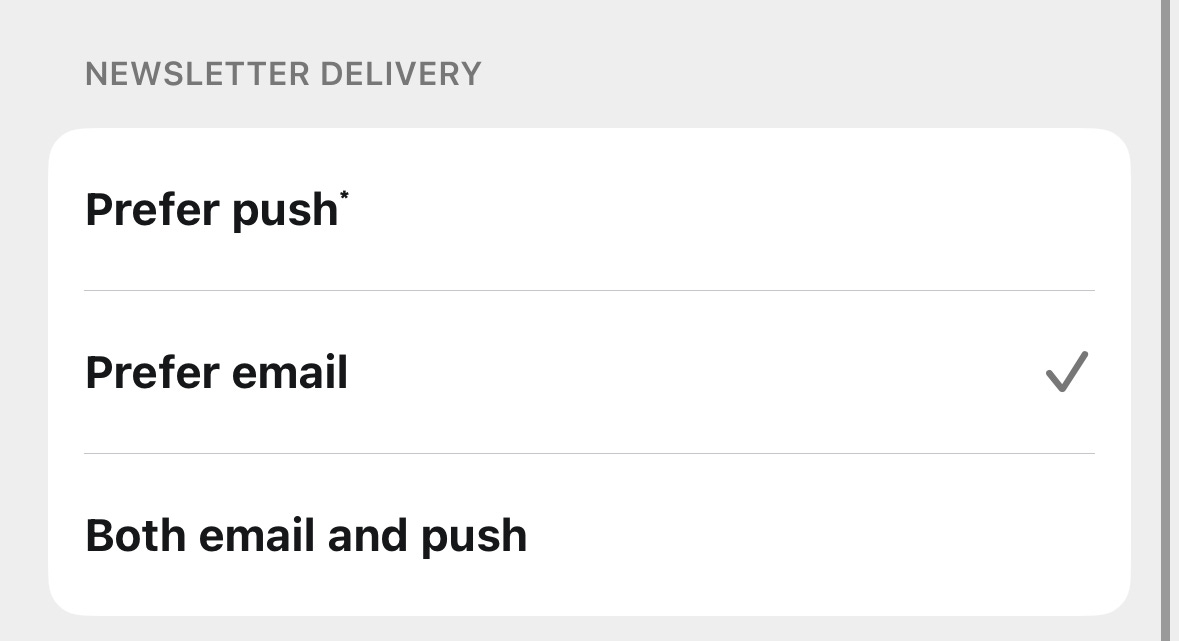
Substack has a Newsletter Delivery setting that can be set to:
Prefer email
Prefer mobile push notifications (which disables email)
Both email & push
To check & fix this on the web:
Head to https://newsletter.checkonchain.com/account
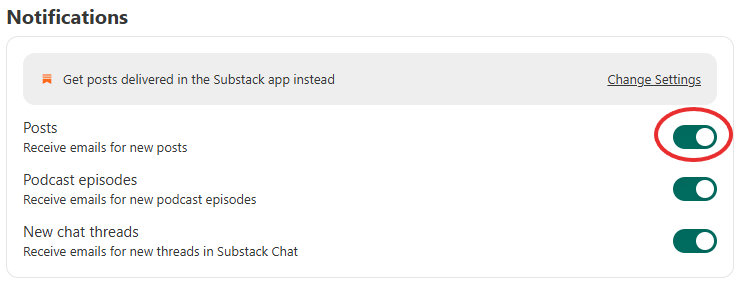
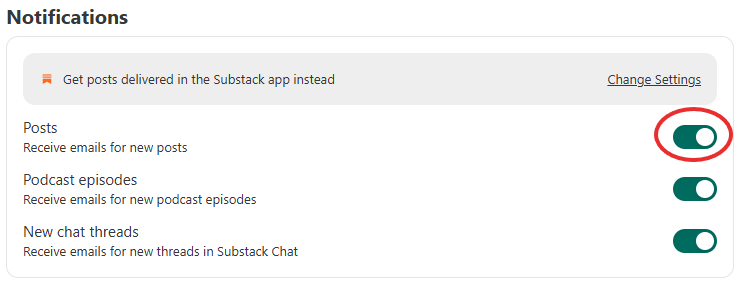
Scroll down to Notifications section and ensure the toggle next to Posts is switched on.
Head to https://substack.com/settings and log in.
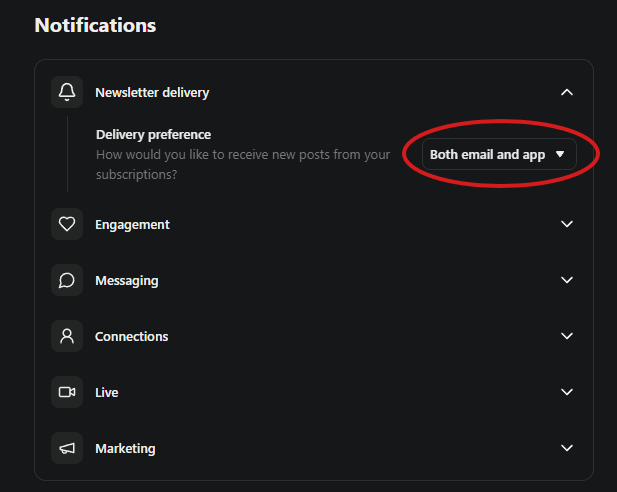
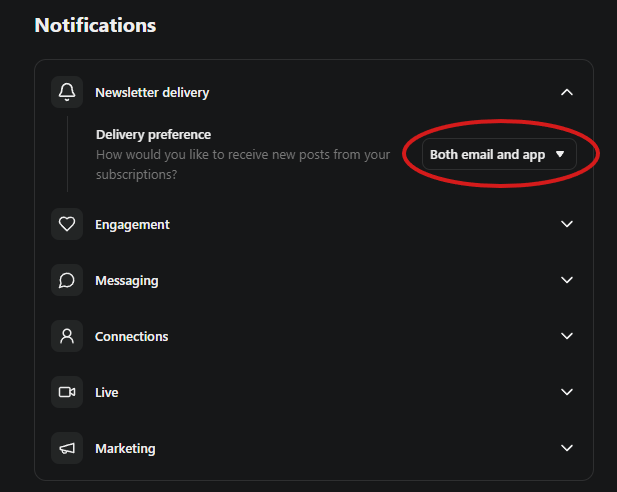
Scroll down to the Notifications section and expand Newsletter Delivery.
Select Prefer email or Both email & app
To check this on the Substack Mobile App:
Open Substack App
Tap User icon (top right)
Tap Settings icon (bottom right)
Tap Notifications
Tap Preferences
Tap Newsletter Delivery
Select: Both email & push - or - Prefer email.
3) Check Your Email Inbox Filters
Even if Substack sends the email, your email provider (like Gmail, Outlook, corporate servers, etc.) may intercept it.
Common filters to check
Spam / Junk folder: If you see an issue here, mark it Not Spam.
Gmail Promotions tab: If an email lands here, move it to Primary.
Whitelist our sender
Add checkonchain@substack.com to your contacts or safe sender list. Many systems prioritise email from contacts when deciding what belongs in the inbox.
4) Corporate or Strict Filters
Some work or school email systems apply aggressive filtering at the server level. If this is the case:
Ask your IT team to whitelist checkonchain@substack.com or Substack’s sending domain.
Many enterprise filters block newsletters by default - and nothing Substack does can override that from the outside.
5) When to Contact Substack Support
If you’ve done the steps above and still aren’t receiving newsletters, you can chat with the Substack Support Bot:
Before you reach out, gather:
The email address you’re subscribed with
Screenshot / description of the email-test result
A list of the troubleshooting steps you tried
Substack Support can then check for email blocks or other backend issues on their side.
If none of the above fixes your issue, please email us directly at support@checkonchain.com and we’ll help troubleshoot further. We endeavour ro respond in one business day.
Best Regards,
The Checkonchain Team